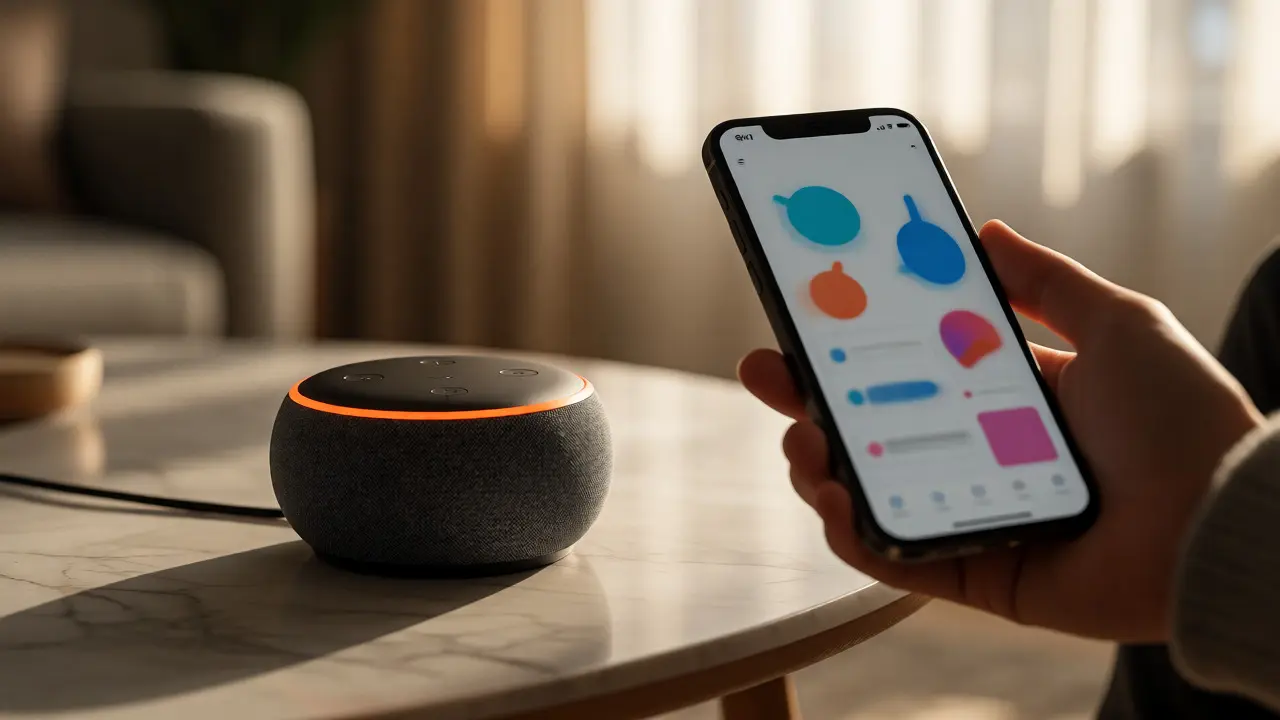
You just unboxed your new Amazon Echo or maybe you've had one for months but never got past the "Hello" stage. You want to turn on lights with your voice, lock doors without touching a knob, and have your thermostat adjust before you even wake up. But staring at that blinking blue ring can feel surprisingly intimidating. Is it Wi-Fi? Is it Bluetooth? Why is it asking for my address?
Here’s the truth: setting up Amazon Alexa isn’t about tech wizardry. It’s about following a specific sequence of steps. Once you get the foundation right-network connection, app pairing, and device discovery-the rest clicks into place. I’ve helped dozens of friends in Portland troubleshoot their setups, and the failures usually happen in the first ten minutes. Let’s fix that.
The Pre-Setup Checklist: What You Actually Need
Before you plug anything in, grab these three things. Skipping this causes 90% of the frustration later.
- A smartphone: Not a tablet, not an old iPod. The Alexa App works best on iOS or Android phones because it uses your phone’s location services and microphone permissions more reliably.
- Your Wi-Fi password: Yes, write it down. If you have a dual-band router (2.4GHz and 5GHz), note which network name corresponds to the 2.4GHz band. Most older Echo devices only connect to 2.4GHz. If you try to force them onto 5GHz, they’ll spin forever.
- An Amazon Account: You need an active account. If you use Prime, you’re good. If you don’t, create a free account. Do not skip the address verification step; Alexa needs a valid physical location to provide local news, weather, and shopping features correctly.
Step-by-Step: The First 15 Minutes
Plug in your Echo device. Wait for the orange light ring to pulse. This means it’s ready to pair. Open the Alexa App on your phone. Tap "More" then "Add Device." Choose "Echo" and follow the prompts.
The app will scan for nearby devices via Bluetooth. This is where people panic when it doesn’t show up immediately. Give it a minute. Move your phone closer if needed. Once found, tap "Connect." Now, here is the critical part: selecting the correct Wi-Fi network. If your device hangs on "Connecting," forget the network in your phone settings and reconnect, ensuring you are on the 2.4GHz band if your Echo is an older model like the original Dot or Gen 3.
Once connected, the app will ask for your address. Enter it exactly as it appears on your mail. This ties your device to your household profile. Finally, choose your preferred language and music service. Spotify, Apple Music, and Amazon Music all work, but Amazon Music is pre-loaded and requires no extra login during setup.
Linking Your Smart Home Devices
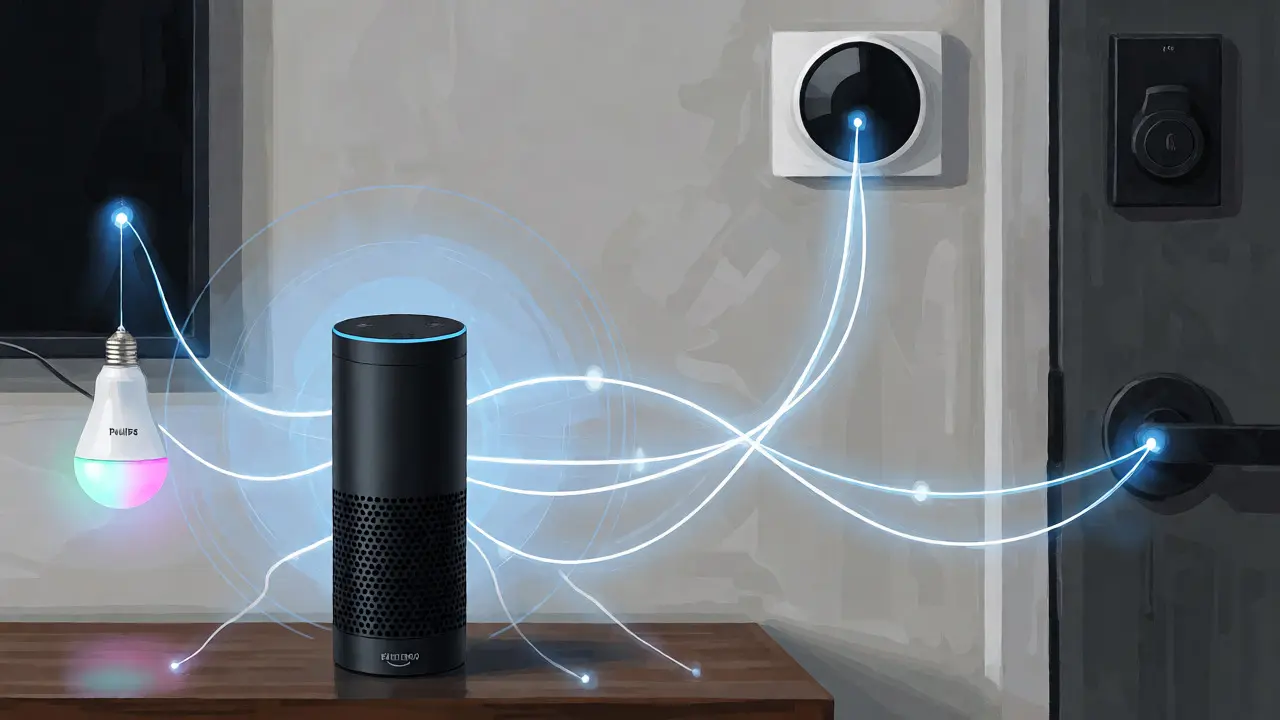
With the Echo online, you need to teach it what else lives in your house. This is done through Smart Home Skills. Think of Skills as apps for your voice assistant. If you have Philips Hue bulbs, LIFX lights, or a Ring doorbell, you must link their respective accounts.
Go to the "Devices" tab in the Alexa App, then tap "+" to add a device. Select "Light," "Plug," or "Thermostat" depending on what you own. For example, if you have a Philips Hue Bridge, select "Hue" from the list. You’ll be redirected to sign in to your Hue account. Once authorized, Alexa will discover every bulb connected to that bridge.
Repeat this for every brand. Kasa plugs? Link the Kasa Skill. Ecobee thermostats? Link the Ecobee Skill. Each brand handles its own authentication. Don’t expect Alexa to magically find a generic smart plug unless it supports the Matter protocol or Zigbee directly (if you have an Echo Hub).
| Device Type | Integration Method | Setup Complexity | Best For |
|---|---|---|---|
| Lights (Hue, LIFX) | Cloud API via Skill | Low | Users wanting color scenes |
| Plugs (Kasa, Wemo) | Cloud API via Skill | Low | Controlling lamps/fans |
| Thermostats (Ecobee, Nest) | OAuth Login | Medium | Energy saving routines |
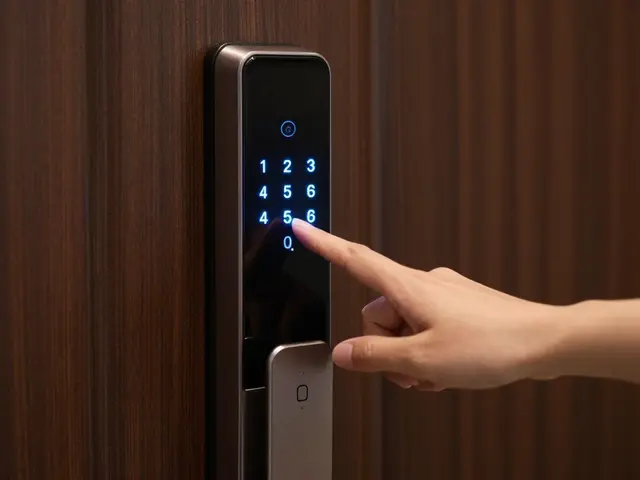
| Locks (August, Yale) | Skill + PIN Code | High | Security-conscious users |
Naming Matters: Avoiding Voice Confusion
This is the most overlooked step. If you name your living room lamp "Living Room Lamp" and your bedroom lamp "Bedroom Lamp," saying "Turn on the lamp" might confuse Alexa. She might ask which one. Or worse, she might turn on both.
Use distinct, easy-to-say names. Instead of "Living Room Lamp," try "Lamp One" and "Lamp Two." Or group them by function: "Reading Light," "Ceiling Fan," "TV Backlight." You can rename any device in the Alexa App under "Devices" > "Lights" (or Plugs) > Select Device > Edit Name.
Also, consider creating Groups. Group all your kitchen lights together and call the group "Kitchen." Now you can say, "Alexa, dim the Kitchen," and every light in that zone adjusts. This reduces command complexity significantly.
Building Routines That Save Time
Turning on lights one by one is boring. Routines let you trigger multiple actions with a single phrase. Go to the "Routines" tab in the app. Create a new routine called "Good Morning." Set the trigger to a voice command like "Good morning." Then, add actions: set thermostat to 72 degrees, turn on bathroom lights, read out the weather forecast, and play your favorite playlist.
You can also automate based on time. A "Sunset" routine can automatically turn on outdoor lights at dusk. Note that Alexa uses your registered address to calculate sunset times accurately. If you move, update your address in the app, or your automation will break.
Pro tip: Use "If This Then That" (IFTTT) integration for advanced triggers. If you want your porch light to turn on when your Ring camera detects motion, link your Ring account to IFTTT, then link IFTTT to Alexa. This bridges gaps between brands that don’t talk directly.
Troubleshooting Common Setup Issues
If Alexa says "I’m having trouble connecting to Wi-Fi," restart your router first. Seriously. Unplug it for 30 seconds. Then reset your Echo by holding the Action button (the dot) for 15 seconds until the light turns orange again. Re-run the setup process.
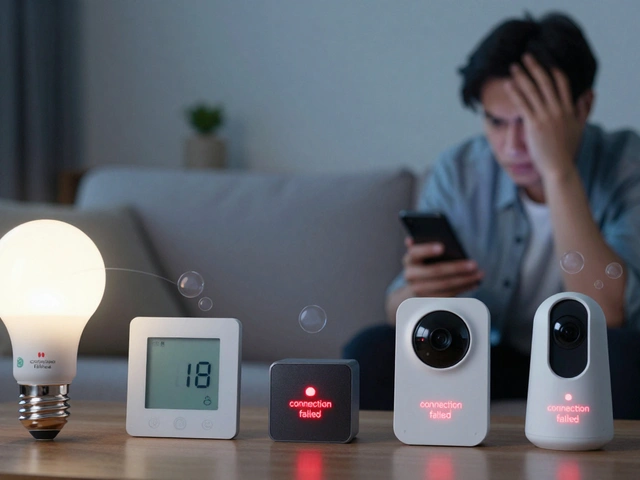
If devices aren’t responding, check the device name spelling. Voice recognition struggles with unusual spellings. Also, ensure your smart devices are powered on and connected to the same Wi-Fi network as the Echo. Some IoT devices drop off Wi-Fi after power outages; manually reconnect them via their native apps if Alexa loses sight of them.
For privacy concerns, you can review voice recordings in the Alexa App under "Settings" > "Alexa Privacy." You can delete recordings individually or set auto-deletion after 3 or 18 months. In my experience, keeping 3 months is enough for debugging while maintaining privacy.
Frequently Asked Questions
Do I need an Amazon Prime subscription to use Alexa?
No. Alexa works with a free Amazon account. However, Prime members get access to Amazon Music Prime and exclusive deals. Basic voice commands, smart home control, and third-party skills work perfectly fine without a paid subscription.
Why won't my Echo connect to 5GHz Wi-Fi?
Most standard Echo devices (like the Echo Dot Gen 3 or 4) only support 2.4GHz Wi-Fi. Newer models like the Echo Studio or Echo Show 10 support both. Check your specific model specs. If you have a combined SSID (same name for both bands), your router might be forcing the wrong band. Try separating the networks in your router settings.
Can Alexa control non-smart appliances?
Yes, using smart plugs. Plug a dumb lamp or fan into a smart plug (like TP-Link Kasa or Wemo). Connect the plug to Alexa. Now you can voice-control the appliance by turning the plug on or off. This is the cheapest way to upgrade existing electronics.
How do I change the volume of Alexa's responses?
You can say "Alexa, turn up the volume" or "Alexa, set volume to 5." Alternatively, swipe down on the screen of Echo Show devices or use the volume buttons on top of Echo Dots and Echos. You can also adjust the default response volume in the Alexa App under Settings > Device Options.
What happens if my internet goes out?
Alexa relies heavily on cloud processing. If Wi-Fi drops, most commands fail. However, some basic timers and alarms may still run locally. Smart home controls via Zigbee (using an Echo Hub) can sometimes continue working locally, but Wi-Fi-based devices (like Hue via cloud) will stop responding until connectivity returns.