Imagine you leave your front door unlocked because it’s convenient for the pizza delivery guy. Now imagine that same unlocked door lets in burglars, raccoons, and every neighbor with a nosy streak. That is essentially what UPnP (Universal Plug and Play) does to your home network. It makes life easier by letting devices talk to the outside world without you lifting a finger, but it often opens doors you didn’t know existed.
If you’ve ever struggled to get your game console online or set up a remote desktop connection, you’ve likely relied on port forwarding or UPnP. But do you actually need them? And more importantly, are they leaving your smart fridge vulnerable to hackers? This guide breaks down exactly how these technologies work, why they pose risks, and how to lock down your router without breaking your internet experience.
What Is UPnP and Why Does It Matter?
UPnP is a set of networking protocols that permits networked devices, such as personal computers, printers, Internet gateways, Wi-Fi access points, and mobile devices, to seamlessly discover each other's presence on the network and establish functional network services for data sharing, communications, and entertainment. In plain English, it allows your Xbox, PlayStation, or smart TV to tell your router: "Hey, I need to open port 3074 so people can join my multiplayer game," without you logging into the admin panel.
The convenience is undeniable. You buy a new camera, plug it in, and it works remotely immediately. No complex configuration required. However, this automation comes at a cost. By design, UPnP trusts local devices implicitly. If malware infects a device on your network-say, a compromised smart bulb-it can use UPnP to open ports and communicate with command-and-control servers externally, bypassing your firewall entirely.
The Risks of Unsecured Port Forwarding
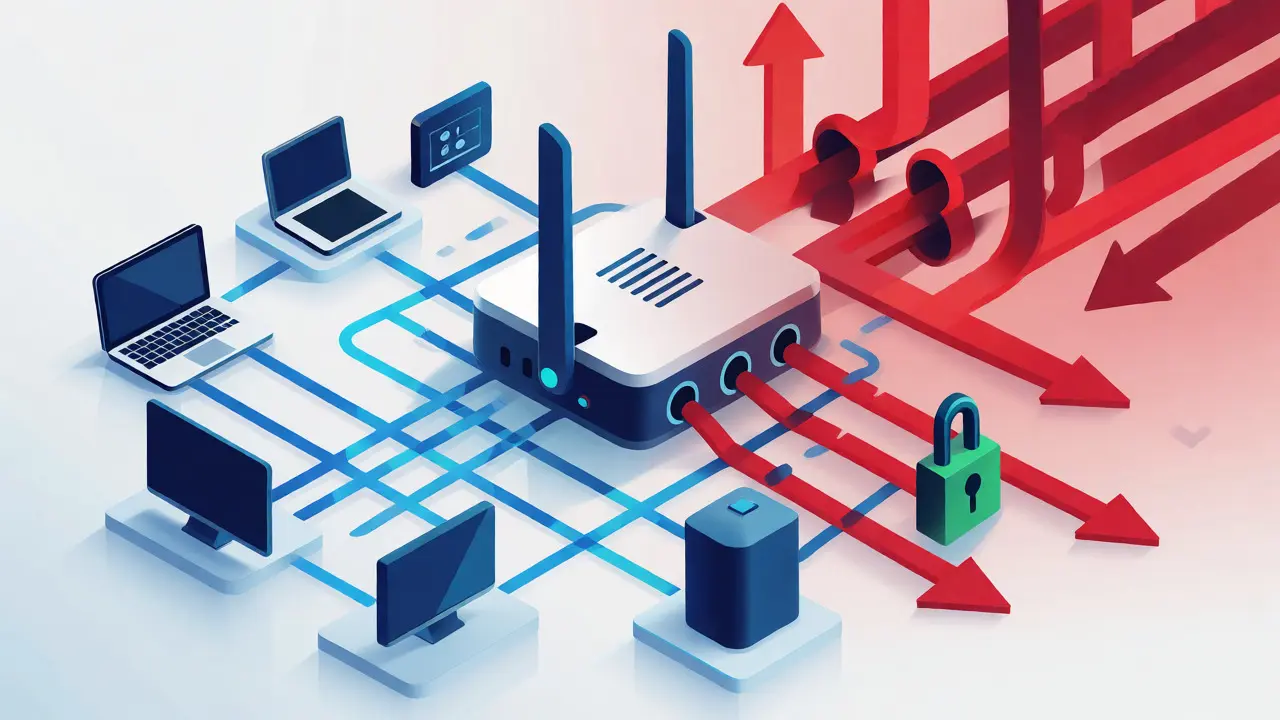
While UPnP automates the process, Port Forwarding is the manual alternative where you explicitly map an external port on your router to an internal IP address and port on a specific device. This gives you control, but misconfiguration is common. Many users forward high-range ports (like 8080 or 5900) without restricting source IPs, effectively exposing their entire subnet to the internet.
A critical vulnerability arises when routers fail to validate UPnP requests properly. Older firmware versions have been known to allow any device on the LAN to open any port on the WAN interface. Attackers can scan your public IP, find an open port opened by a rogue IoT device, and exploit vulnerabilities in the service listening on that port. For example, if a poorly secured DVR opens port 80 for remote viewing, an attacker might brute-force the login credentials from thousands of miles away.
Step-by-Step: Disabling UPnP Safely
For most home users, disabling UPnP is the single best security upgrade you can make. Here is how to do it without losing functionality:
- Access Your Router Admin Panel: Open a browser and type your gateway IP (usually 192.168.1.1 or 192.168.0.1). Log in with your admin credentials.
- Locate UPnP Settings: Look under "Advanced," "WAN," or "NAT" settings. The option is often labeled "Enable UPnP" or "Universal Plug and Play."
- Disable and Save: Toggle the setting to "Off" or "Disabled." Click Apply or Save. Note that some routers require a reboot for changes to take effect.
- Test Connectivity: Check your gaming consoles or streaming devices. Most modern apps will prompt you to manually configure port forwarding if UPnP is off.
If you disable UPnP, you must be prepared to handle port mappings manually. This means knowing which ports your applications need. For instance, Minecraft Java Edition uses TCP port 25565, while Zoom typically relies on outbound UDP connections which don't always require explicit forwarding.
Best Practices for Manual Port Forwarding
If you decide to keep port forwarding enabled for specific services, follow these strict guidelines to minimize risk:
- Use Static Internal IPs: Assign fixed IP addresses to devices that need port forwarding via DHCP reservations. If a device gets a new IP after a restart, your forwarded port will point to nothing-or worse, a different device.
- Limit Source IP Addresses: Don't just open a port to the whole world. If you only access your home server from your office, restrict the incoming traffic to your office's static IP address.
- Change Default Ports: Instead of using standard ports like 80 (HTTP) or 443 (HTTPS), use non-standard high-numbered ports (e.g., 8443 instead of 443). This reduces noise from automated bot scans.
- Keep Firmware Updated: Router manufacturers patch UPnP vulnerabilities regularly. An outdated router is a ticking time bomb regardless of your settings.
| Method | Convenience | Security Risk | Control Level |
|---|---|---|---|
| UPnP Enabled | High (Automatic) | High (Trusted Local Devices) | Low |
| Manual Port Forwarding | Medium (Requires Setup) | Medium (Depends on Config) | High |
| DMZ Host | High (All Ports Open) | Very High (Device Exposed) | None |
| NAT Traversal (STUN/TURN) | Variable | Low | Medium |
Alternatives to Traditional Port Forwarding
Do you really need to expose your home network to the internet? Often, no. Modern networking offers safer alternatives that achieve the same results without opening holes in your firewall.
VPN (Virtual Private Network) solutions like WireGuard or OpenVPN allow you to create a secure tunnel from your phone or laptop back to your home router. Once connected, you appear to be on the local network. You can access your NAS, cameras, or desktop securely without any inbound ports being open. This is arguably the most secure method for remote access.
Another option is Reverse Proxies combined with dynamic DNS services. Services like Cloudflare Tunnel or Tailscale create outbound-only connections to the cloud, eliminating the need for port forwarding entirely. These tools are increasingly popular among tech-savvy homeowners who want simplicity and security.
Troubleshooting Common Issues
After securing your router, you might encounter connectivity issues. Here’s how to diagnose them quickly:
- Gaming Lag or Connection Failures: If your NAT type is "Strict" or "Moderate," check if you disabled UPnP. Manually forward the specific ports listed by the game publisher (e.g., EA Sports games often list required ports on their support pages).
- Camera Remote View Not Working: Ensure the camera has a static IP. Verify that the port you forwarded matches the HTTP/RTSP port configured on the camera itself. Use a tool like CanYouSeeMe.org to test if the port is actually open from the outside.
- Printer Sharing Fails: Printers often rely on NetBIOS or SMB protocols, which are blocked by default across NAT. Consider using AirPrint or direct Wi-Fi printing instead of relying on network discovery.
Frequently Asked Questions
Is it safe to turn off UPnP completely?
Yes, for most users, turning off UPnP is safer and recommended. It prevents malicious software on local devices from automatically opening ports. The trade-off is that you may need to manually configure port forwarding for certain applications like older games or specific P2P software.
Does port forwarding slow down my internet speed?
No, port forwarding itself does not impact bandwidth or latency. It simply directs traffic arriving on a specific port to a specific device. However, if the receiving device is overwhelmed by too many incoming connections, its performance might suffer, but the router's throughput remains unaffected.
What is the difference between DMZ and Port Forwarding?
Port forwarding opens specific ports for specific services. Placing a device in the DMZ (Demilitarized Zone) exposes all ports on that device to the internet, except those already handled by the router. DMZ is less secure than port forwarding because it removes the firewall protection for that specific device entirely.
Can hackers detect if I have UPnP enabled?
Yes. Attackers can send specific SSDP (Simple Service Discovery Protocol) multicast packets to your public IP. If your router responds, they know UPnP is active and potentially vulnerable. Some routers also respond to HTTP GET requests on port 80 or 8080 even when idle, revealing their model and firmware version.
Should I use IPv6 instead of port forwarding?
IPv6 eliminates the need for NAT, and thus port forwarding, because every device gets a unique global address. However, IPv6 introduces new security challenges. Without proper firewall rules, every device is directly accessible from the internet. You still need to configure firewall policies to block unsolicited inbound traffic, similar to how you manage ports in IPv4.