There is nothing more frustrating than staring at a blinking light on your new smart bulb or thermostat, knowing it should work, but watching your phone refuse to connect. You have the app open, the password is correct, and the device is plugged in, yet the pairing process fails every single time. If you are dealing with stubborn 2.4 GHz connection issues, you are not alone. This specific frequency band is the backbone of almost every smart home ecosystem, from cheap plugs to high-end security cameras. When it breaks, your entire digital house feels like it’s crumbling.
The good news is that these problems rarely mean your hardware is broken. Usually, they stem from a mismatch between modern router capabilities and older device protocols. By adjusting a few settings on your network and changing how you approach the setup, you can get those devices talking again without buying new gear.
Why Your Smart Devices Crave the 2.4 GHz Band
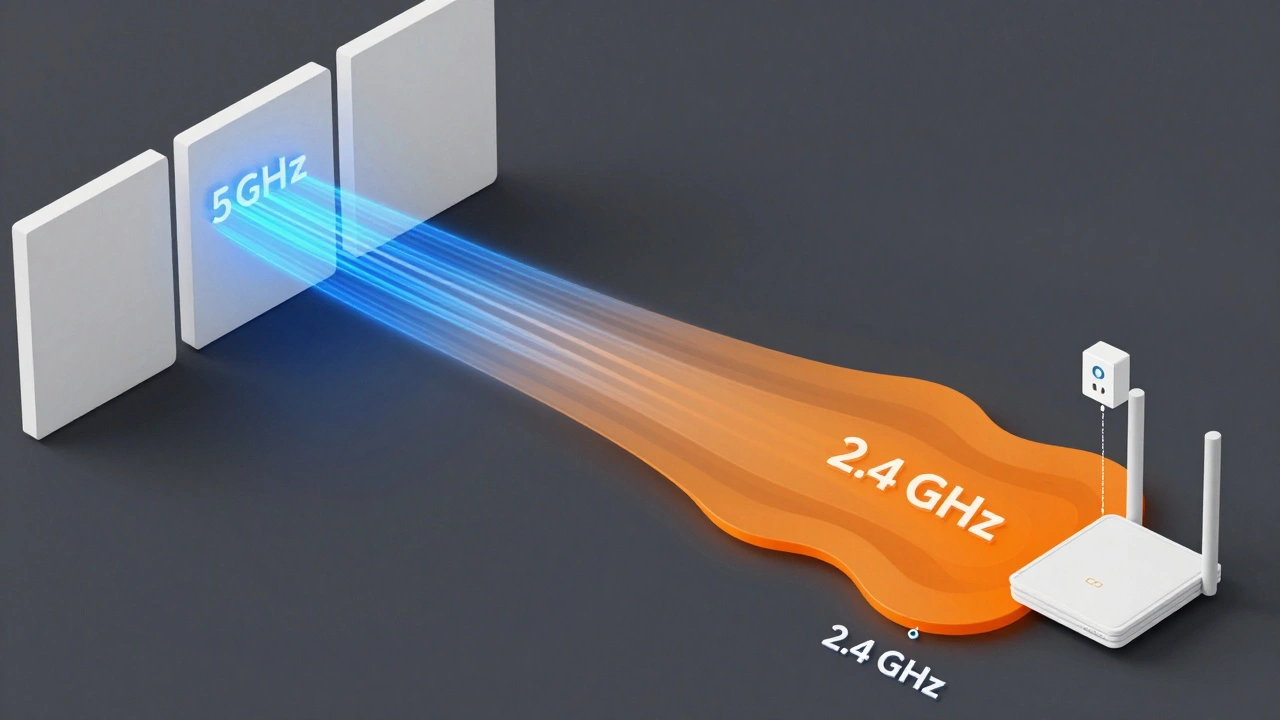
To fix the problem, you first need to understand why it exists. Most modern routers broadcast two different signals: 2.4 GHz and 5 GHz. The 5 GHz band is faster and less crowded, making it perfect for streaming 4K video or gaming. However, it has a shorter range and struggles to penetrate walls.
The 2.4 GHz band, on the other hand, travels further and passes through obstacles better. More importantly, most Internet of Things (IoT) devices-like motion sensors, smart locks, and LED strips-are built with simpler, cheaper chips that only support this older standard. They simply cannot "hear" the 5 GHz signal. When your router automatically steers your phone to the faster 5 GHz network, your phone is effectively deaf to the device trying to pair with it.
- Range: 2.4 GHz covers larger areas and penetrates walls better.
- Compatibility: Legacy IoT devices often lack 5 GHz hardware.
- Congestion: This band is shared with microwaves, baby monitors, and neighbors' Wi-Fi, leading to interference.
Understanding this split is the key to solving pairing errors. Your goal is to ensure both your phone and the device are listening on the same frequency.
Router Settings That Block Connection
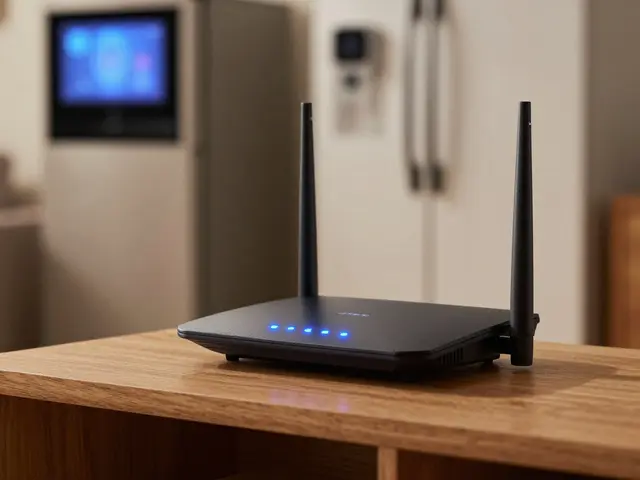
Your router is the gatekeeper. If its settings are too aggressive or outdated, it will reject connection attempts before they even start. One common culprit is a feature called "Band Steering." While intended to improve performance by pushing capable devices to 5 GHz, it often confuses phones during the initial setup phase. When you try to pair a device, the app might force your phone onto the 2.4 GHz network temporarily, but if Band Steering kicks in immediately, your phone jumps back to 5 GHz, breaking the handshake.
Another issue is channel width. Many modern routers default to 40 MHz or 80 MHz channel widths for speed. However, many simple smart devices only support 20 MHz channels. If your router is broadcasting a wide channel, the device might detect the signal but fail to lock onto it because the data stream is too complex for its receiver.
Security protocols also play a role. Older devices may not support WPA3, the latest encryption standard. If your router forces WPA3-only mode, legacy gadgets will be locked out entirely. Switching to a mixed mode (WPA2/WPA3) or sticking to WPA2-AES ensures broader compatibility without significantly compromising security for most home users.
| Setting | Default Value | Recommended for Pairing | Reason |
|---|---|---|---|
| Band Steering | Enabled | Disabled | Prevents phone from jumping bands during setup |
| Channel Width | Auto / 40 MHz | 20 MHz | Ensures compatibility with basic IoT chips |
| Security Mode | WPA3 Only | WPA2-AES or Mixed | Older devices cannot decrypt WPA3 |
| SSID Broadcast | Hidden | Visible | Devices need to see the network name to connect |
Phone Configuration: Clearing the Path
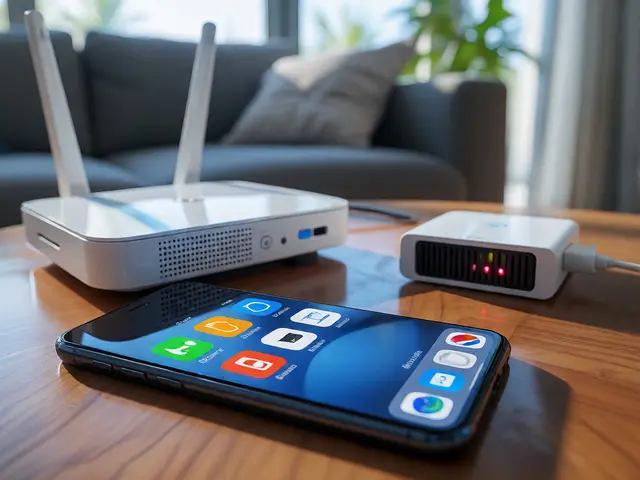
Once your router is configured correctly, your phone needs to play nice. Modern smartphones are designed to optimize battery life and speed, which sometimes means ignoring slower networks. If your phone has previously connected to your 5 GHz network, it will aggressively stick to it, ignoring the 2.4 GHz signal required for pairing.
The first step is to forget the existing Wi-Fi networks. Go into your phone's Wi-Fi settings and select "Forget" for both the 2.4 GHz and 5 GHz versions of your home network. Then, turn off Bluetooth. Many pairing apps use Bluetooth Low Energy (BLE) to discover devices, but some rely solely on Wi-Fi Direct or local discovery protocols. Turning off Bluetooth eliminates potential conflicts where the phone tries to use BLE while the app expects a Wi-Fi handshake.
If you have separate SSIDs for your bands (e.g., "HomeWiFi-2G" and "HomeWiFi-5G"), manually connect your phone to the 2.4 GHz version before opening the app. If you use a single SSID for both bands, you may need to temporarily disable the 5 GHz radio on your router to force your phone onto the 2.4 GHz band. This is a drastic measure, but it guarantees that no band-steering algorithms interfere with the process.
App-Specific Troubleshooting Steps
Sometimes the bottleneck is the application itself. Apps cache old network data or permissions that prevent them from accessing local network resources. On iOS, Apple has tightened privacy controls, requiring explicit permission for apps to access Local Network information. If you skipped this prompt earlier, the app literally cannot see the device you are trying to pair.
Check your phone's settings for the specific app (like Tuya Smart, Smart Life, or manufacturer-specific apps). Ensure that "Local Network" access is enabled. If it is already enabled, toggle it off and back on to refresh the permission.
Clear the app's cache and data. This forces the app to re-initialize its discovery protocols. On Android, go to Settings > Apps > [App Name] > Storage > Clear Cache. On iOS, you often need to delete and reinstall the app to achieve a similar result. After reinstalling, grant all requested permissions immediately. Do not skip notifications or location services, as some apps use coarse location data to enable Wi-Fi scanning features.
Also, check for firmware updates within the app. Sometimes, a bug in the current version prevents successful pairing with newer device models. Updating the app can patch these communication gaps.
Environmental Interference and Physical Placement
Even with perfect settings, physical environment can kill a connection. The 2.4 GHz spectrum is incredibly crowded. Your microwave oven, cordless phones, baby monitors, and even neighboring Wi-Fi networks operate on the same frequencies. If you are trying to pair a device near the kitchen, the microwave could be creating enough noise to drown out the pairing signal.
Moving the device closer to the router during setup helps. Once paired, you can move it to its final location. Also, try changing the wireless channel on your router. Channels 1, 6, and 11 are non-overlapping in the 2.4 GHz band. If your router is set to "Auto," it might pick a congested channel. Manually selecting Channel 1 or 11 often results in a cleaner signal path.
Physical obstructions matter too. Metal surfaces, mirrors, and large aquariums block Wi-Fi signals. During pairing, place the device in an open area, away from heavy furniture or appliances. If you are setting up a mesh system, ensure the nodes are spaced appropriately-not too close together, which causes co-channel interference, and not too far apart, which breaks the backhaul.
When Hardware Is the Real Problem
If you have adjusted router settings, cleared phone caches, moved devices around, and still face failure, the hardware itself might be at fault. Some budget IoT devices have poor antenna designs or faulty Wi-Fi chips. Try pairing the device with a different smartphone or tablet. If it works there, the issue lies with your primary phone's software configuration. If it fails on multiple devices, the gadget may be defective.
In rare cases, the router's hardware limitations come into play. Very old routers may struggle to handle the number of simultaneous connections required by a modern smart home. If you have dozens of devices, consider upgrading to a router with better processing power or a dedicated IoT VLAN feature. This isolates smart devices on a separate network segment, reducing congestion and improving stability.
Remember, patience is part of the process. Pairing can take several minutes. Do not interrupt the process by closing the app or turning off Wi-Fi. Let the device complete its handshake, even if the lights seem stuck. Sometimes, the indicator LED lags behind the actual connection status.
Why won't my smart device connect to 5 GHz Wi-Fi?
Most affordable smart home devices are manufactured with Wi-Fi chips that only support the 2.4 GHz band due to cost constraints and the need for better wall penetration. They physically cannot communicate on the 5 GHz frequency. You must connect your phone to the 2.4 GHz network to pair these devices.
Should I disable 5 GHz when pairing devices?
If your router uses a single SSID for both bands, temporarily disabling the 5 GHz radio can help. This forces your phone to connect exclusively to the 2.4 GHz band, eliminating confusion caused by band steering. Re-enable 5 GHz once the pairing is complete.
What is Band Steering and does it affect pairing?
Band Steering is a router feature that automatically directs dual-band clients to the 5 GHz network for better performance. During pairing, this can cause your phone to switch bands mid-process, breaking the connection with the 2.4 GHz-only device. Disabling it temporarily resolves this issue.
How do I know if my phone is on the 2.4 GHz network?
If your router broadcasts separate names (SSIDs) for each band, look for indicators like "-2G" or "-2.4" in the network list. If you use a single SSID, you can check the connection details in your phone's Wi-Fi settings; it will usually show the frequency band used. Alternatively, disable the 5 GHz band on the router to force connection to 2.4 GHz.
Can a weak Wi-Fi signal cause pairing failures?
Yes. Pairing requires a stable, strong connection to exchange security keys and configuration data. If the signal is too weak, packets drop, and the handshake fails. Move the device closer to the router during setup, then relocate it afterward.
Do I need to reset my router to fix pairing issues?
Usually, no. Restarting the router can help clear temporary glitches, but resetting it to factory defaults erases all custom settings. Instead, focus on adjusting specific settings like channel width, security mode, and band steering as outlined above.