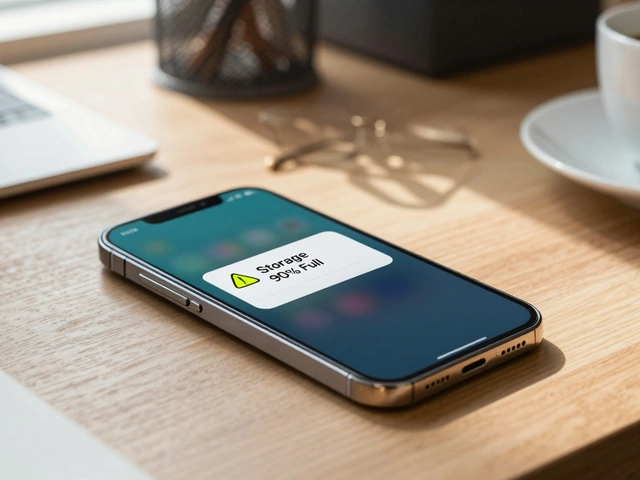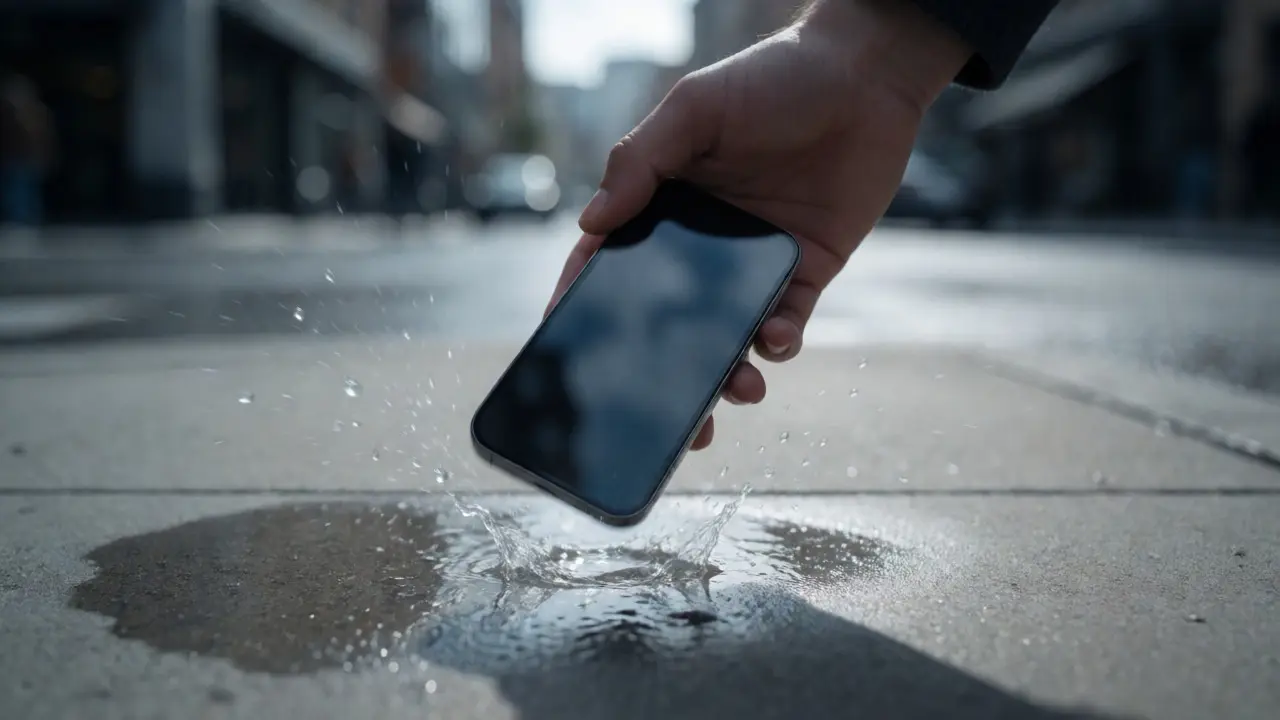
You know that sinking feeling when your phone slips out of your pocket onto concrete? Or worse, you drop it in the toilet while trying to take a selfie. In seconds, years of photos, contacts, and chat history are gone. Unless you have a solid cloud strategy, that data is likely unrecoverable. Most people assume their phone automatically saves everything, but default settings often leave critical gaps. This guide breaks down exactly how to secure your digital life on both iPhone and Android using cloud services, so you never lose a memory again.
The Reality of Phone Data Loss
Phones fail for three main reasons: physical damage, theft, and software corruption. Physical damage is obvious-screen cracks or water ingress kill the hardware. Theft means someone else has your device, and if they factory reset it before you track them down, your local data is wiped. Software issues, like a bad update or a corrupted file system, can render a phone unusable even if the hardware looks fine. Relying solely on the device itself is a gamble. You need an off-device copy. That’s where cloud strategies come in. They aren’t just about convenience; they are insurance policies for your personal history.
Understanding the Core Backup Entities
To build a reliable system, you need to understand the tools available. The two dominant players are Apple’s iCloud and Google’s ecosystem (Google Drive/One). These aren’t just storage buckets; they are integrated systems that sync specific types of data differently.
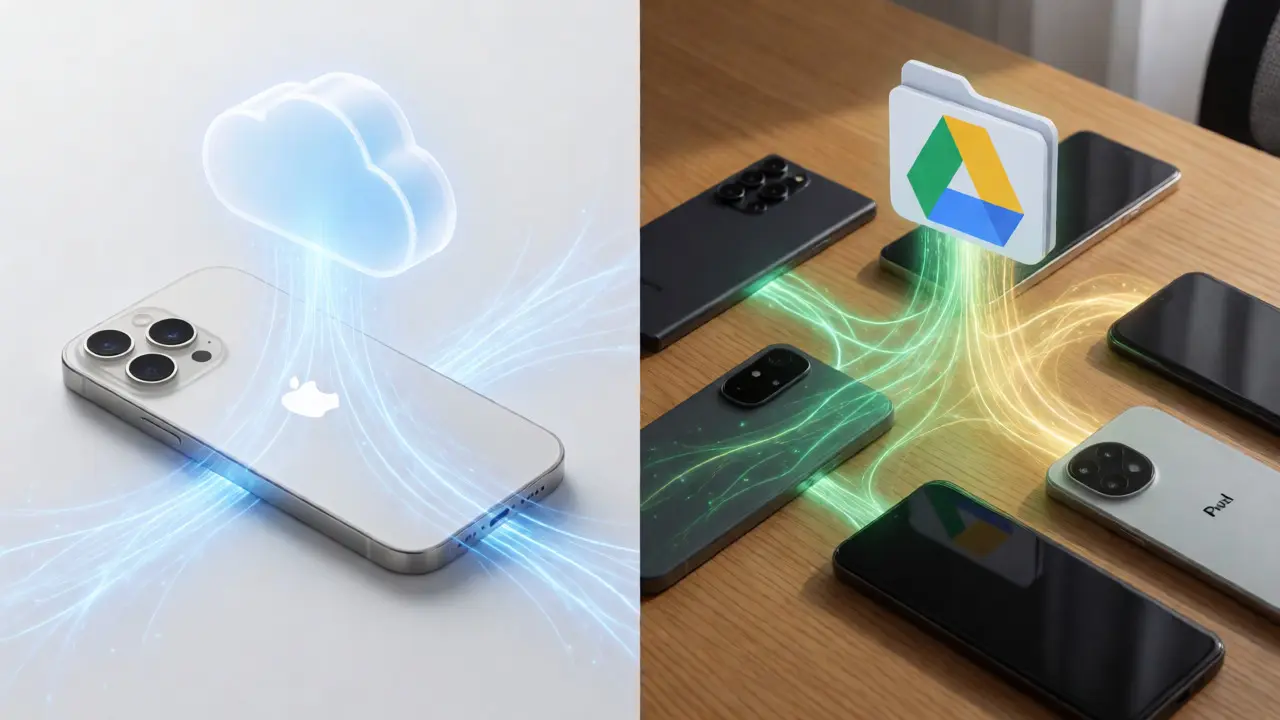
iCloud is Apple's proprietary cloud service that integrates deeply with iOS devices to back up photos, apps, and settings. It works seamlessly with the Photos app and Keychain for passwords. Unlike generic file storage, iCloud focuses on restoring the exact state of your device.
Google One is a subscription service from Google that expands storage across Gmail, Drive, and Photos, serving as the primary backup engine for most Android devices. It handles more than just files; it manages device backups including SMS logs and call history, depending on manufacturer integration.
Third-party options like Dropbox or Microsoft OneDrive play supporting roles. They excel at document synchronization but often lack the deep system-level restore capabilities of the native platforms. For most users, sticking to the native ecosystem for full device backups and using third-party apps for selective document archiving is the smartest move.
Mastering the iOS Cloud Strategy
If you use an iPhone, your life revolves around iCloud. Here is how to optimize it. First, check your storage plan. The free tier gives you only 5GB. That fills up fast with just a few months of high-resolution videos. Upgrading to 50GB or 200GB is usually necessary for active smartphone users. Go to Settings > [Your Name] > iCloud > Manage Account Storage to see what is eating your space. Often, old message attachments or duplicate photos are the culprits.
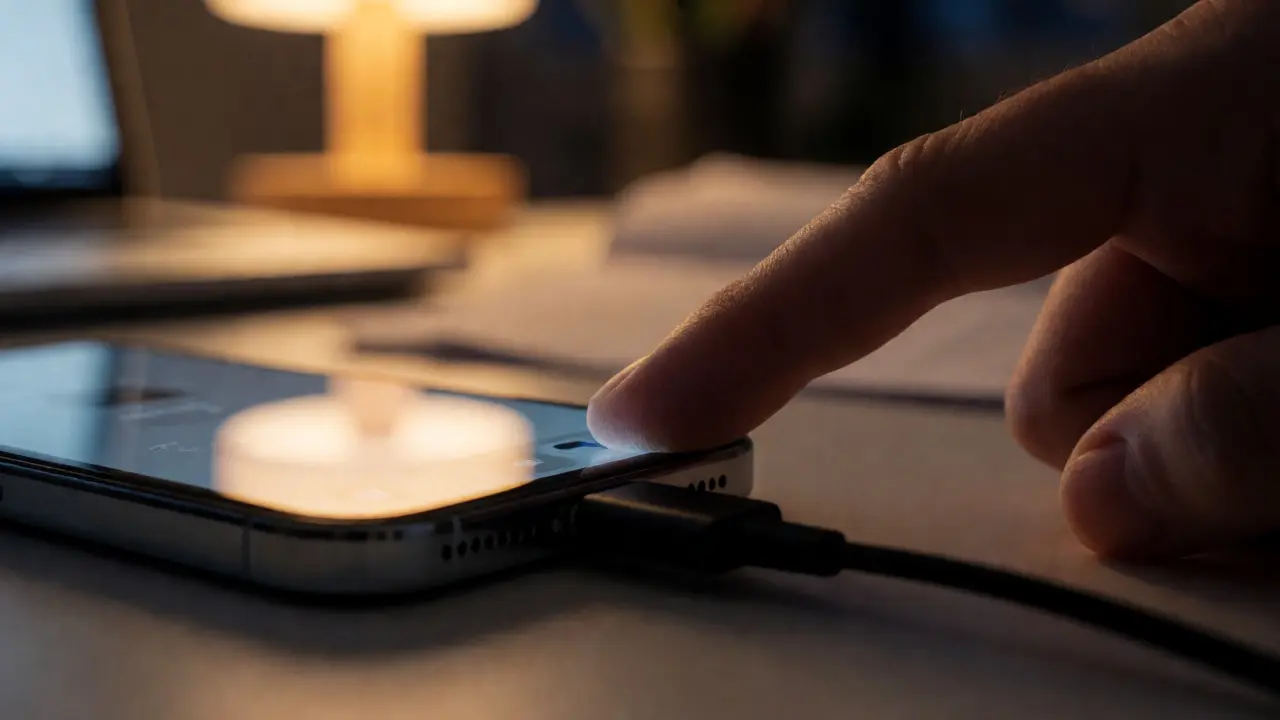
Next, configure iCloud Backup properly. Ensure "iCloud Backup" is toggled on in Settings > General > Transfer or Reset iPhone > Back Up Now. But here is the trick: manual backups are not enough. You need automatic daily backups. Connect your phone to power, lock the screen, and join Wi-Fi. This triggers the background process. If you skip this step, you might be weeks behind on your latest data.
Don't forget iCloud Photos. This feature uploads your entire photo library to the cloud. You can choose between "Optimize iPhone Storage," which keeps low-res versions on your phone and full-res in the cloud, or "Download and Keep Originals." For most people, Optimize is better because it frees up local space without losing access to your memories. Just remember, if you delete a photo on one device, it deletes everywhere. Be careful with accidental swipes.
Optimizing Android Cloud Backups
Android is messier because manufacturers like Samsung, Pixel, and OnePlus implement backup features differently. However, the core relies on Google Account. Start by going to Settings > System > Backup. Ensure "Back up to Google Drive" is enabled. This backs up app data, call history, device settings, and SMS messages. Note that photos are handled separately via Google Photos.
Google Photos is arguably the most important component for Android users. Enable "Backup & Sync" within the app. Choose "High Quality" (now called Storage Saver) if you want unlimited free backups of compressed images, or "Original Quality" if you pay for Google One storage. High quality compresses files slightly, making them invisible to the naked eye but saving massive amounts of space. For professional photographers shooting RAW files, stick to Original Quality and buy extra storage.
Samsung users have an additional layer: Samsung Cloud. While Google handles general data, Samsung Cloud often backs up Samsung-specific settings and notes. Check Settings > Accounts and Backup > Back up my data. If you switch phones frequently, ensure you sign into your Samsung account to retrieve these exclusive items later.
Comparison: Native vs. Third-Party Solutions
Should you rely entirely on Apple or Google? Not always. Here is a breakdown of why you might mix strategies.
| Feature | iCloud (iOS) | Google One (Android) | Dropbox/OneDrive |
|---|---|---|---|
| Full Device Restore | Yes, seamless | Yes, varies by OEM | No, files only |
| Photo Handling | Integrated Library | Separate App (Photos) | Folder-based |
| Password Security | Keychain (End-to-end) | Smart Lock/Passwords | Depends on App |
| Cost (1TB) | ~$9.99/month | ~$9.99/month | ~$9.99/month |
| Best For | Total ecosystem users | Photo-heavy users | Document sharing |
Native solutions win on restoration ease. If you buy a new iPhone, signing in restores your layout, apps, and data almost instantly. Third-party apps require you to manually download each app and log in, then import files. Use Dropbox or OneDrive for documents you share with colleagues or family, as they offer better cross-platform collaboration. But for your personal life snapshot, keep it native.
Common Pitfalls and How to Avoid Them
Even with backups enabled, people lose data. Why? Two common mistakes: ignoring storage limits and forgetting to verify.
First, storage limits. When iCloud or Google One runs out of space, backups stop silently. You won't get a loud alarm; you'll just notice your photos aren't appearing on your iPad or laptop. Set a reminder every six months to check your usage. If you are constantly hitting the limit, consider deleting old WhatsApp video caches or turning off backup for large apps you don't care about, like games.
Second, verification. Do you actually know your backup works? Test it. Delete a non-critical contact or a screenshot from your phone. Wait for the sync to complete. Then, log into iCloud.com or drive.google.com from a computer. Is the item there? If yes, your pipeline is healthy. If no, troubleshoot your Wi-Fi connection or permissions immediately. Don't wait until disaster strikes to find out your backup was broken for three months.
Advanced Tips for Power Users
If you handle sensitive data, standard encryption might not suffice. Both Apple and Google encrypt data in transit and at rest. However, for true privacy, look into end-to-end encryption (E2EE). Apple offers Advanced Data Protection for iCloud, which extends E2EE to backups, meaning even Apple cannot read your data. This requires setting up a separate recovery key. Lose that key, and you lose access to your backup. Write it down physically.
For Android, the situation is trickier. Google encrypts backups, but the keys are managed by Google. If you want strict control, use an encrypted external hard drive for occasional local backups alongside the cloud. Plug your phone into a computer, copy the DCIM folder (photos), and store it offline. This protects against account bans or service outages.
Frequently Asked Questions
Does backing up to the cloud save battery life?
Not directly. In fact, initial syncing can drain battery faster. However, by enabling "Optimize Storage" for photos, you reduce the amount of data processed locally, which can help long-term performance. Always perform large backups while charging to avoid unexpected shutdowns during the transfer.
Can I access my backed-up data from any device?
Yes, but with caveats. Full device backups (like iPhone system states) are best restored on similar devices. However, individual files like photos, documents, and contacts can be accessed via web browsers on any computer. You do not need the original phone to view your data, only to restore the full operating system environment.
What happens if I cancel my cloud subscription?
If you downgrade to the free tier and exceed the limit, new backups will stop. Your existing data remains accessible for a grace period (usually 30 days on many platforms), after which you may lose access to older files until you upgrade again or delete excess data. Always export critical files to a local drive before canceling.
Is cloud backup safe from hackers?
Major providers use robust encryption standards. However, the weakest link is often user security. Weak passwords or lack of Two-Factor Authentication (2FA) make accounts vulnerable. Enable 2FA on your Apple ID and Google Account immediately. This ensures that even if someone guesses your password, they cannot access your cloud backup without your second factor.
How long does it take to restore a phone from the cloud?
It depends on the amount of data and internet speed. A typical restore for 100GB of data over standard home Wi-Fi can take anywhere from 30 minutes to several hours. During this time, the phone is mostly unusable. Plan accordingly if you are replacing a broken device urgently.