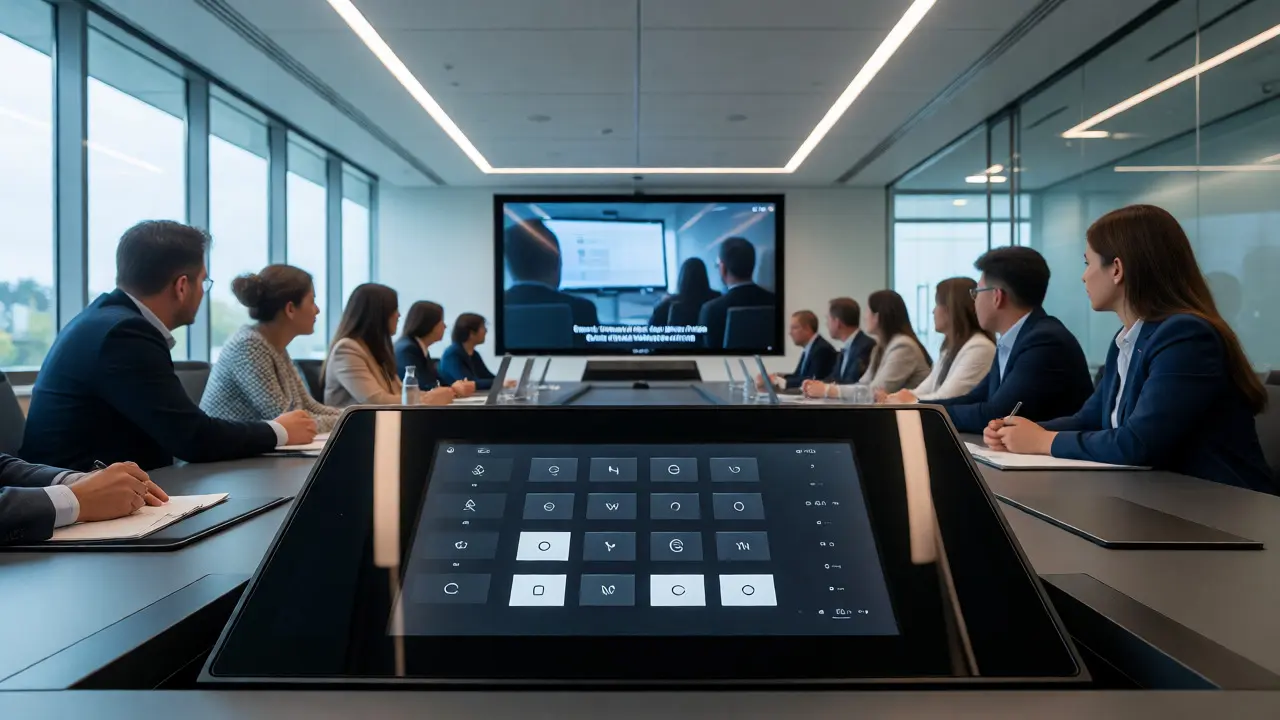
Imagine walking into a modern conference room, ready to present your quarterly results. You plug in your laptop, but the display doesn't switch over. Or worse, you're in a public lobby with an interactive kiosk, and the font is so small and low-contrast that you can barely read it without squinting. These aren't just annoyances; they are failures of accessibility in commercial technology. For business owners and IT managers, ignoring this isn't just bad customer service-it's a legal risk. The Americans with Disabilities Act (ADA) has evolved far beyond wheelchair ramps and elevator buttons. Today, it heavily impacts how we design, install, and maintain Audio-Visual (AV) and Information Technology (IT) systems.
If you run a hotel, a corporate office, or a retail space, you need to understand where the digital world meets physical access. It’s not enough to buy the latest 4K screens or high-speed Wi-Fi routers. You have to ensure that people with visual, auditory, motor, or cognitive disabilities can actually use them. This guide breaks down exactly what ADA compliance looks like for your tech stack, avoiding the legal jargon while keeping the practical stakes clear.
The Digital Barrier: Why AV Compliance Matters Now
For decades, accessibility meant checking if a door had a push plate instead of a knob. But as businesses moved toward smart offices and digital-first customer experiences, the barriers shifted from physical to digital. A video wall in a bank lobby might look impressive, but if it displays critical account information in tiny text without audio support, it excludes visually impaired customers. Similarly, a conference room with advanced video conferencing gear fails if it lacks captioning capabilities for deaf participants.
The core issue is that many modern AV systems are designed for aesthetics or performance, not usability. We see this constantly in Portland and other tech hubs: sleek touch panels that require precise finger taps, excluding users with motor impairments. Or complex remote controls with unlabeled buttons, confusing those with cognitive disabilities. When these systems don’t work for everyone, they create exclusion. And under the ADA, specifically Title III regarding public accommodations, exclusion can lead to lawsuits. Recent case law has increasingly focused on websites and apps, but the principle extends to any interface the public interacts with.
Decoding the Standards: ADA vs. WCAG vs. Section 508
You’ve probably heard these acronyms thrown around in meetings. They are related, but they aren’t identical. Understanding the difference helps you prioritize your budget and efforts.
- ADA (Americans with Disabilities Act): This is US federal law prohibiting discrimination based on disability. It sets the legal obligation but often leaves the "how" open to interpretation, especially for new technologies.
- WCAG (Web Content Accessibility Guidelines): Developed by the W3C, these are the technical standards most courts and agencies reference when evaluating digital accessibility. If your AV system includes web-based interfaces or digital signage software, WCAG is your bible.
- Section 508: A part of the Rehabilitation Act, this mandates accessibility for federal agencies. While it applies strictly to government contractors, many private companies adopt it as a best-practice benchmark because it aligns closely with WCAG.
Here’s the reality: Courts rarely cite "ADA Section X" for specific pixel sizes. Instead, they ask, "Did the plaintiff face a barrier?" Then they look at whether you followed recognized standards like WCAG 2.1 AA. So, while the ADA is the law, WCAG is the rulebook. Ignoring WCAG makes defending an ADA claim much harder.
Visual Accessibility: Beyond Just Big Fonts
Visual impairment covers a wide spectrum, from total blindness to color blindness and low vision. Your commercial displays need to accommodate all of them. Start with contrast. The Web Content Accessibility Guidelines recommend a minimum contrast ratio of 4.5:1 for normal text and 3:1 for large text. In practice, this means white text on a light gray background is a no-go. Use dark backgrounds with bright text, or vice versa, ensuring the colors stand out sharply.
Next, consider screen readers. If your digital signage or kiosk uses a touchscreen interface, does it support voice-over commands? Many modern operating systems include built-in screen readers, but your custom application must expose its elements correctly to these tools. If a button is just an image file named "button.png," a screen reader will say "button dot png." That’s useless. It needs proper metadata labels.
Color blindness affects about 8% of men and 0.5% of women. If your status indicators rely solely on red and green lights-common in server racks and AV equipment-you’re excluding millions of users. Add icons or shapes. A red circle with an exclamation mark is clearer than just a red light. Also, allow users to adjust brightness and font size. Fixed-size fonts on a fixed-resolution monitor are a trap. Provide zoom functions or physical magnification options near kiosks.
Auditory Accessibility: Captions Are Not Optional
Deaf and hard-of-hearing individuals make up a significant portion of your workforce and customer base. In commercial AV, this primarily impacts video conferencing, digital signage, and emergency alert systems. If you play videos in your lobby, do they have captions? And not just auto-generated ones, which are often inaccurate. Professional closed captions are essential for clarity.
For meeting rooms, integrate captioning services into your UCaaS (Unified Communications as a Service) platforms. Tools like Zoom and Microsoft Teams offer real-time transcription, but accuracy varies. For high-stakes presentations, consider human captioners or AI-assisted services with post-editing. Additionally, ensure that audio cues are paired with visual signals. If a fire alarm goes off, is there a strobe light? If a phone rings in a quiet zone, does a light blink?
Induction loops are another critical piece of hardware. These magnetic fields transmit sound directly to hearing aids. Installing induction loops in theaters, lecture halls, or service counters allows hearing aid users to hear clearly without background noise interference. It’s a one-time installation cost that provides ongoing value and demonstrates genuine inclusivity.
Motor and Cognitive Accessibility: Usability for All
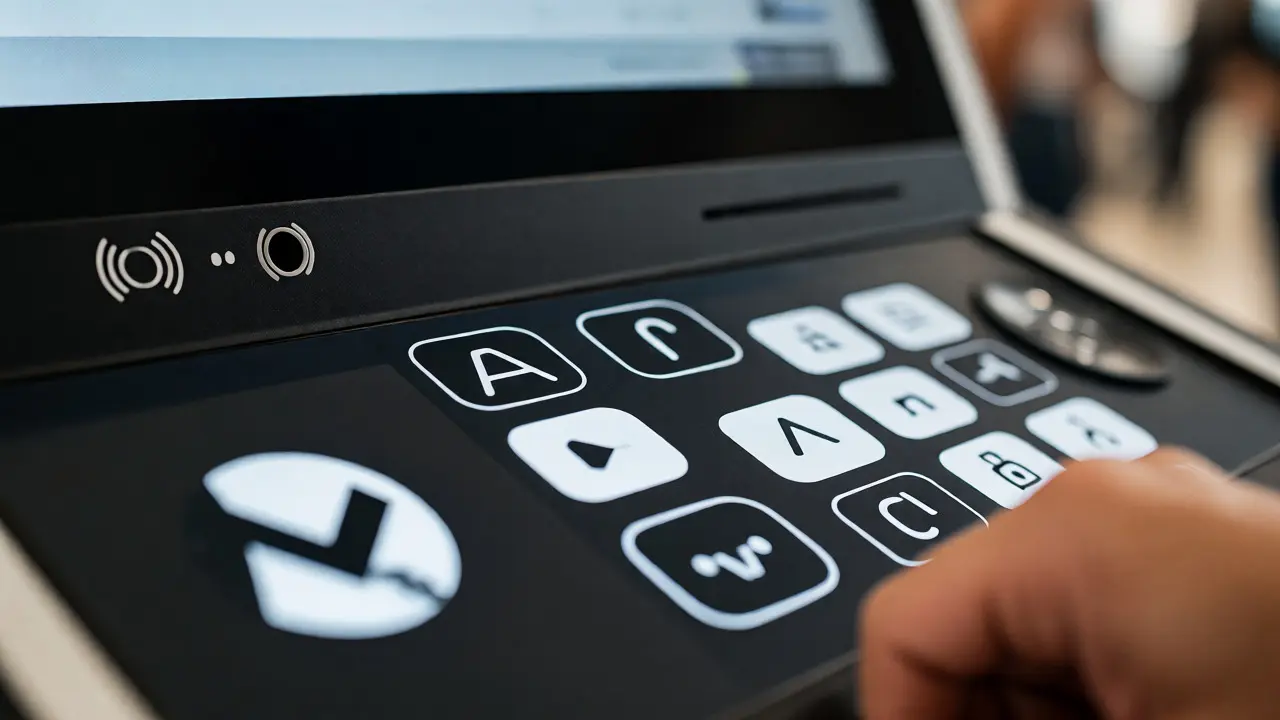
Motor disabilities affect fine motor control, making touchscreens difficult for some users. If your check-in kiosk requires a precise tap on a small icon, someone with tremors or arthritis might struggle. Make touch targets larger-at least 44x44 pixels according to mobile standards-and provide spacing between buttons to prevent accidental presses. Alternatively, offer physical buttons or voice command alternatives.
Cognitive accessibility is often overlooked. Complex menus, jargon-heavy instructions, and flashing lights can overwhelm users with autism, ADHD, or intellectual disabilities. Keep interfaces simple. Use consistent navigation patterns. Avoid auto-playing videos that distract from reading. Allow users to pause content. For emergency alerts, use plain language. Instead of "Evacuate via primary egress route," try "Leave through the main exit now." Clarity saves lives and reduces stress.
Implementing Accessibility in Your IT Infrastructure
Accessibility isn’t just about the end-user device; it’s about the backend too. Your IT team manages the servers, networks, and software licenses that power these AV systems. Here’s how to bake accessibility into your procurement and maintenance cycles:
- Audit Existing Systems: Walk through your facility. Try using the elevators, kiosks, and meeting rooms without relying on sight or hearing. What breaks? Document every barrier.
- Vendor Requirements: When buying new AV equipment, add accessibility clauses to contracts. Ask vendors for their VPAT (Voluntary Product Accessibility Template). This document details how their product meets Section 508/WCAG standards. If they can’t provide one, be wary.
- Training Staff: Your employees need to know how to assist users with disabilities. Train receptionists on how to operate accessible features. Teach IT support staff to troubleshoot screen reader issues, not just connectivity problems.
- Maintenance Checks: Regularly test accessibility features. Do the captions still sync? Is the induction loop working? Technology degrades, and software updates can break accessibility hooks.
| Feature | Target Disability | Implementation Tip |
|---|---|---|
| High Contrast Mode | Low Vision / Color Blindness | Ensure 4.5:1 contrast ratio; avoid red/green only indicators. |
| Closed Captioning | Deaf / Hard of Hearing | Use professional captions; verify sync with audio. |
| Screen Reader Support | Blind / Low Vision | Label all UI elements properly; test with NVDA or VoiceOver. |
| Large Touch Targets | Motor Impairment | Minimum 44x44px buttons; adequate spacing. |
| Induction Loop | Hearing Aid Users | Install in key listening areas; test signal strength. |
| Plain Language Alerts | Cognitive Disability | Use simple words; avoid idioms or complex syntax. |
The Business Case: ROI of Inclusivity
Some managers view accessibility as a compliance tax. But think about it differently. An accessible website captures more traffic. An accessible store serves more customers. An accessible workplace retains talent who might otherwise leave due to friction. According to the World Health Organization, over 1 billion people live with some form of disability. That’s a massive market segment. By failing to accommodate them, you’re leaving money on the table.
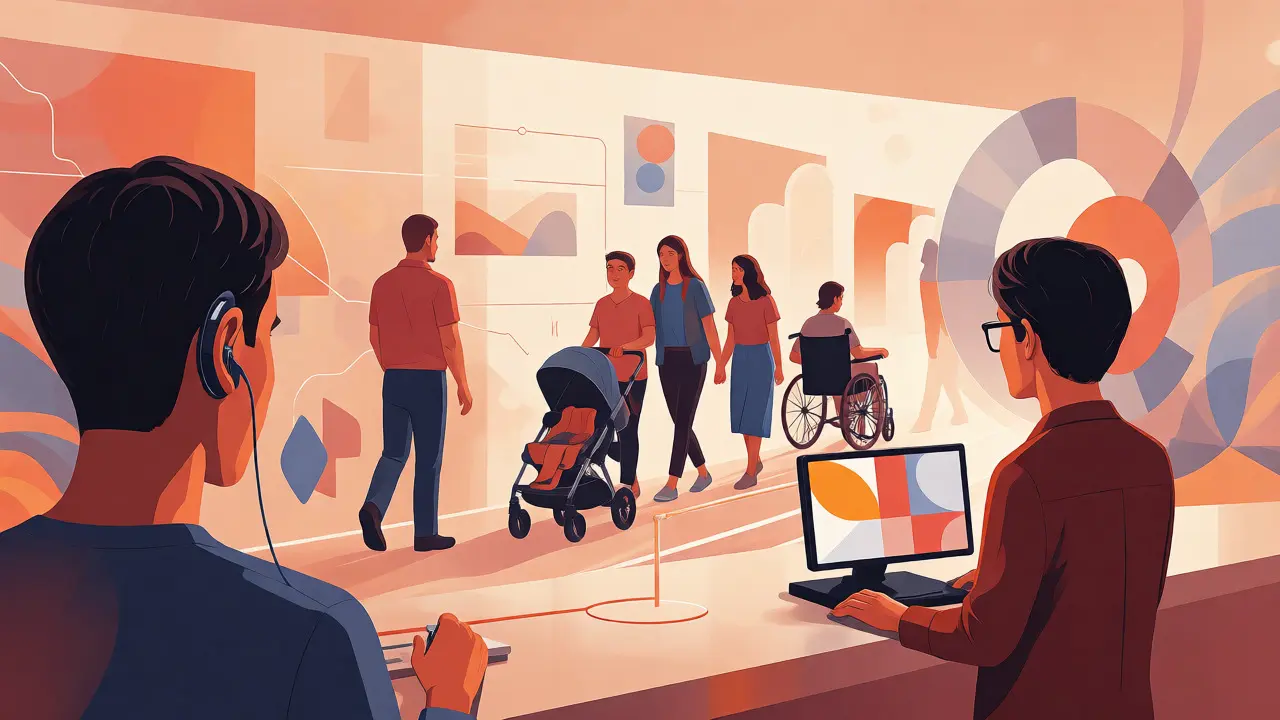
Moreover, good accessibility improves usability for everyone. Curbside cuts help parents with strollers and travelers with luggage. Captions help people watching videos in noisy airports or silent libraries. High-contrast screens help users viewing devices in bright sunlight. This is known as the "Curb-Cut Effect." Designing for the edges benefits the center. So, when you invest in ADA-compliant AV and IT systems, you’re not just avoiding lawsuits. You’re building a better, more user-friendly experience for all your customers and employees.
Frequently Asked Questions
Does the ADA apply to my company’s website?
Yes, generally speaking. While the ADA was written before the internet boom, courts consistently rule that websites connected to physical places of public accommodation (like hotels, banks, and retailers) must be accessible. Failing to meet WCAG standards exposes you to litigation.
What is a VPAT and why do I need one?
A VPAT (Voluntary Product Accessibility Template) is a document provided by software or hardware vendors that details how their product conforms to accessibility standards like Section 508 or WCAG. You need it to verify that the products you buy are compliant before you install them, saving you retrofit costs later.
Are automatic captions sufficient for compliance?
Not always. Automatic speech recognition (ASR) is improving but still makes errors, especially with accents or technical jargon. For critical communications, such as safety instructions or legal disclaimers, manual review or human captioning is recommended to ensure accuracy and clarity.
How do I test if my digital signage is accessible?
Check three things: Contrast ratios should be high (use online contrast checkers). Text size should be readable from the intended viewing distance. Audio content should have captions or transcripts available nearby. Also, ensure the content isn’t flashing rapidly, which can trigger seizures.
Is it expensive to retrofit old AV systems for accessibility?
It depends. Software fixes, like updating display settings or adding caption tracks, are cheap. Hardware changes, like installing induction loops or replacing non-accessible touch panels, can be costly. However, planning for accessibility during new installations is significantly cheaper than retrofitting later.