You press the button on your wall switch, and the light turns on. Or maybe you don't. Maybe it takes a second. Then two. In that gap between action and reaction, your immersion breaks. You aren't just dealing with a slow bulb; you're fighting network latency and jitter. These two invisible metrics dictate whether your smart home feels like magic or like a buggy prototype.
Most people obsess over download speeds. They run speed tests, see 500 Mbps, and think they are good to go. But high bandwidth doesn't help if the data packets arrive late or out of order. For smart home devices, which send tiny bursts of data constantly, consistency matters far more than raw throughput. If you want your voice assistant to respond instantly or your security camera to alert you without delay, you need to understand how latency and jitter work together.
The Difference Between Latency and Jitter
Think of your network connection as a highway. Latency is the time it takes for a single car (data packet) to travel from your router to your smart plug and back. It is measured in milliseconds (ms). Low latency means the trip is fast. High latency means traffic jams or long detours.
Jitter is different. It measures the variation in latency over time. Imagine those cars are supposed to arrive every ten seconds. If one arrives at 10s, the next at 11s, and the third at 30s, you have high jitter. The average might still be okay, but the unpredictability causes problems. For streaming video, your buffer can hide this. For real-time control, it kills the experience.
| Device Type | Sensitivity to Latency | Sensitivity to Jitter | Tolerable Threshold |
|---|---|---|---|
| Smart Lights (Wi-Fi/Zigbee) | Medium | Low | < 100ms latency |
| Voice Assistants (Alexa/Siri) | High | High | < 50ms latency, < 10ms jitter |
| Security Cameras | Medium | High | < 150ms latency, stable stream |
| Gaming Consoles | Very High | Very High | < 20ms latency, < 5ms jitter |
Why Your Voice Assistant Stalls
You say, "Hey Google, turn off the lights." If there is a 200ms delay before the command reaches the server, and another 200ms for the response to return, you feel a lag. Add jitter, and sometimes that round-trip takes 400ms, other times 600ms. This inconsistency makes the system feel unreliable. You start doubting if it heard you correctly.
This isn't usually about your internet plan's speed. It is often about local network congestion. When your neighbor's Wi-Fi overlaps with yours, or when your laptop starts downloading a massive game update, your router prioritizes large data chunks. Small, urgent commands from your smart thermostat get stuck in the queue. This is where Quality of Service (QoS) settings on your router become critical. Without them, your voice command competes equally with Netflix buffering.
The Zigbee and Z-Wave Advantage
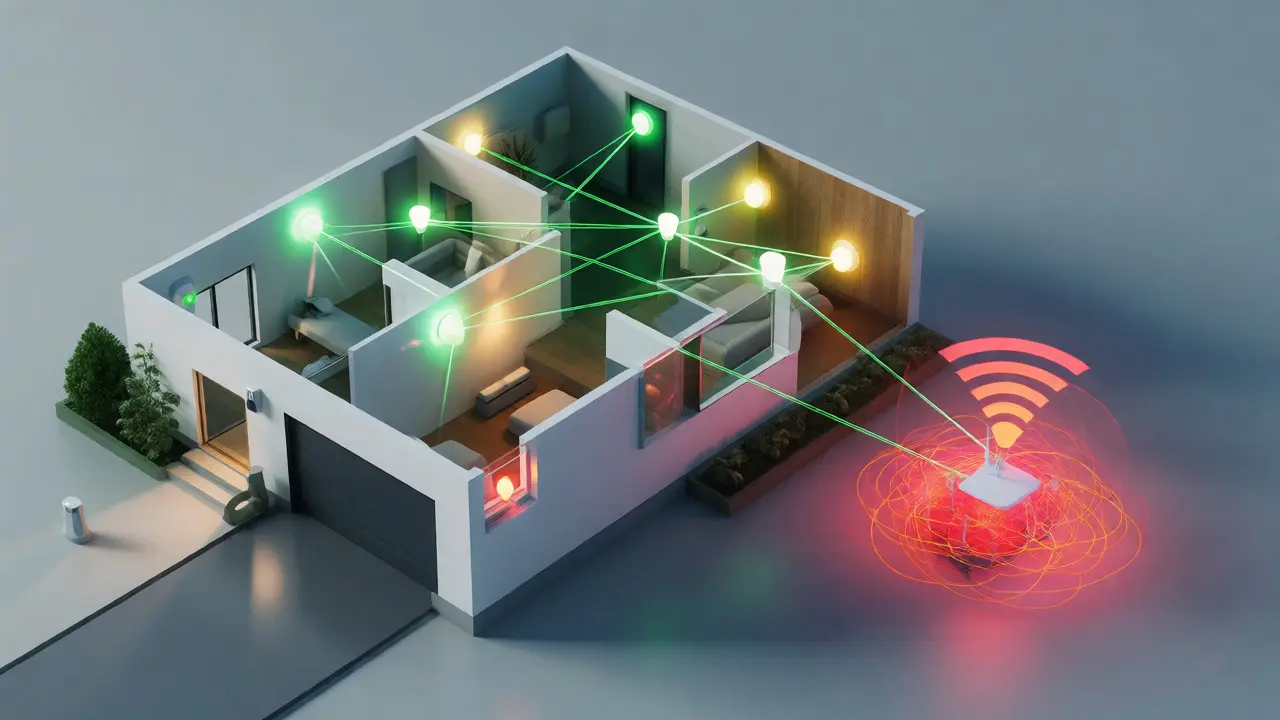
If you struggle with Wi-Fi latency, look into mesh protocols like Zigbee or Z-Wave. These technologies operate on their own low-power networks, separate from your main Wi-Fi band. They use a mesh topology, meaning each device acts as a repeater. If one path is congested, the signal hops to another node.
This architecture inherently reduces jitter. Because the data packets are small and the protocol is designed for low-bandwidth, intermittent communication, the network remains stable even during heavy Wi-Fi usage. A Zigbee smart lock responds almost instantly because it isn't waiting for a slot on a crowded 2.4GHz channel shared by forty other devices. However, you need a dedicated hub or bridge to connect these meshes to your home network. This adds a layer of complexity but pays off in responsiveness.

How Wi-Fi Congestion Kills Performance
Most modern homes are saturated with Wi-Fi signals. In dense urban areas like Portland, Oregon, scanning your channels reveals dozens of neighboring routers. Even if you set up your router perfectly, interference happens. Interference forces retransmissions. If a packet gets corrupted, it has to be sent again. This doubles the latency for that specific packet.
When multiple retransmissions occur randomly, jitter spikes. Your smart home app might show "device offline" momentarily, then reconnect. These micro-disconnections are frustrating. To fix this, move away from the 2.4GHz band for critical devices if possible. The 5GHz band offers less congestion and higher speeds, though its range is shorter. For smart homes, a tri-band router or a mesh Wi-Fi system with dedicated backhaul can isolate management traffic from user traffic, keeping latency low for your IoT gadgets.
Practical Steps to Reduce Lag
You don't need an enterprise-grade setup to improve your smart home. Start with these concrete actions:
- Enable QoS: Log into your router admin panel. Look for Quality of Service settings. Prioritize traffic from your smart home hubs or voice assistants. Mark them as "high priority" so they jump the queue ahead of file downloads.
- Use Wired Backhaul: If you use a mesh Wi-Fi system, connect the nodes via Ethernet cables instead of relying on wireless backhaul. Wireless backhaul shares bandwidth and increases latency. Wired backhaul provides a dedicated lane for data movement.
- Update Firmware: Manufacturers frequently release updates that optimize radio performance. Check your router, smart hubs, and individual device apps for updates. An outdated firmware version can introduce inefficient polling methods that increase network chatter.
- Isolate IoT Devices: Create a separate SSID (network name) for your smart home devices. This prevents your gaming PC or streaming TV from interfering with the lightweight commands sent by sensors and switches. Some advanced routers allow you to limit bandwidth for this IoT network, ensuring it never starves.
Monitoring Your Network Health
You can't fix what you don't measure. Use free tools like PingPlotter or built-in router diagnostics to track latency and jitter over time. Run a test while your family is watching TV versus when the house is quiet. If jitter spikes only during peak hours, you have a capacity issue. If it stays high all day, you likely have interference or a faulty cable.
Pay attention to packet loss. Even 1% packet loss can cause noticeable delays in real-time applications. If you see consistent packet loss, check your physical connections. Loose Ethernet cables or damaged coaxial lines introduce errors that force retransmissions, directly increasing both latency and jitter. Sometimes, the solution isn't software-it's replacing a $10 cable.
Frequently Asked Questions
What is acceptable latency for a smart home?
For most smart home devices, latency under 100 milliseconds is acceptable. However, for voice assistants and interactive controls, aim for under 50 milliseconds. Anything above 200 milliseconds will feel sluggish and unresponsive to users.
Does upgrading my internet speed fix jitter?
Not necessarily. Higher bandwidth helps if your network is saturated, but jitter is often caused by interference, poor routing, or wireless congestion. Upgrading speed won't fix issues caused by a bad Wi-Fi channel or outdated router hardware.
Is Zigbee better than Wi-Fi for smart lights?
Generally, yes. Zigbee creates a separate, low-congestion network that doesn't compete with your phones and laptops. This results in lower latency and more reliable responses, especially in homes with many connected devices.
How do I check jitter on my computer?
On Windows, open Command Prompt and type `ping -t [your-router-ip]`. Watch the time values fluctuate. On macOS, use Terminal with `ping -i 0.2 [your-router-ip]`. Consistent numbers mean low jitter; wild swings indicate high jitter.
Can too many smart devices cause network lag?
Yes, if they are all on Wi-Fi. Each device requires bandwidth for periodic status checks. Over 50 devices on a single 2.4GHz channel can cause significant congestion, leading to higher latency and jitter for everyone on the network.