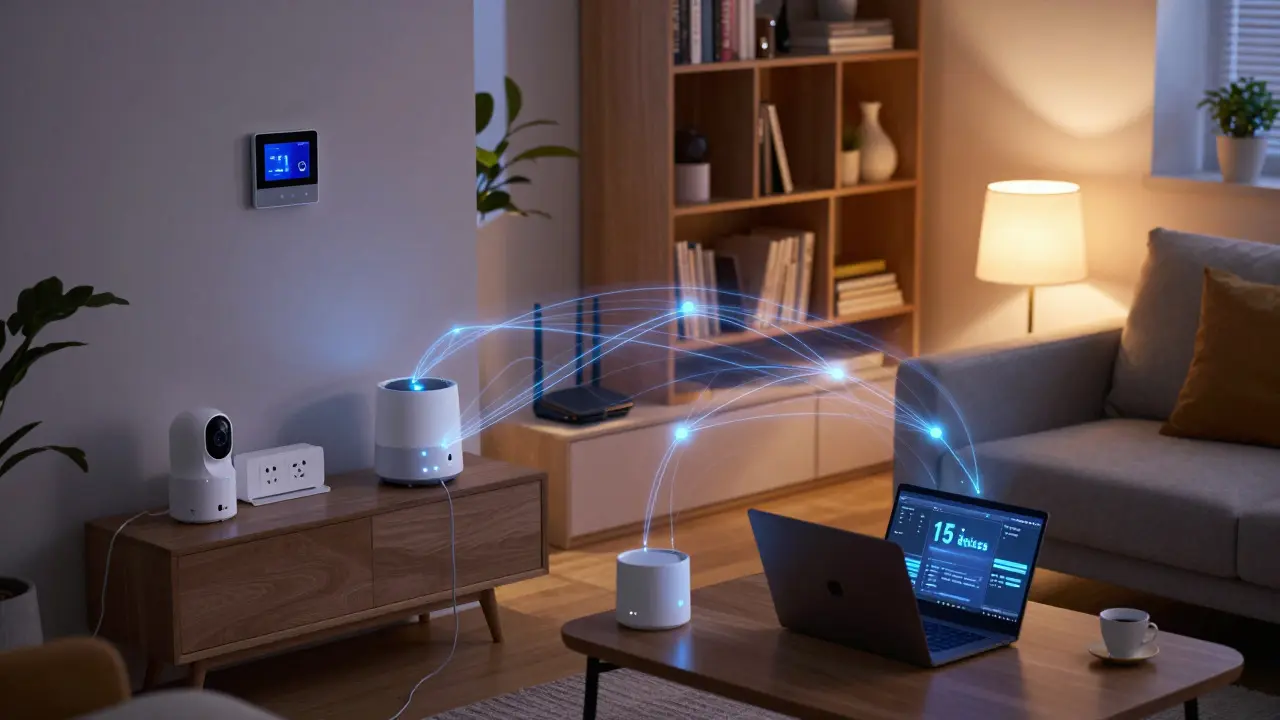
Did you know that the average smart home contains over 15 connected devices, each a potential entry point for hackers? Most homeowners check their bank accounts but rarely look at their home network is the central hub connecting all your internet-enabled devices to the outside world. If your Wi-Fi password is "password123" or your firmware hasn't been updated since 2022, you are likely leaving the front door unlocked. This guide walks you through a realistic, step-by-step process to secure your digital home without needing a computer science degree.
Why Your Home Network Needs a Checkup
Your home network is not just about streaming movies; it is the infrastructure for your daily life. It handles video calls, online banking, and smart locks. When this system fails or gets breached, the impact goes beyond slow internet speeds. A compromised smart thermostat can be used as part of a botnet to attack major companies. A hacked IP camera can leak private footage to strangers. The risk isn't theoretical; it happens every day because most people treat their router like a piece of furniture-something you set up once and forget about forever.
The core issue is visibility. You probably know who has access to your physical house, but do you know exactly which devices are talking to the internet right now? Many old gadgets, like printers or baby monitors, run outdated software with known vulnerabilities. An audit helps you identify these weak links before they become problems.
Step 1: Map Your Connected Devices
You cannot protect what you do not know exists. Start by creating an inventory of everything connected to your Wi-Fi. This includes obvious items like laptops and phones, but also less obvious ones like smart plugs, security cameras, and even your gaming console. Log into your router’s admin page (usually found at 192.168.1.1 or 192.168.0.1) to see the list of active clients. Compare this list with what you physically own. If you see a device you don’t recognize, investigate it immediately. It could be a neighbor’s phone stealing your bandwidth, or worse, an intruder’s laptop.
- Identify unknown devices: Look for MAC addresses that don’t match your hardware.
- Categorize devices: Group them into critical (computers), sensitive (cameras/baby monitors), and low-risk (smart bulbs).
- Note offline devices: Remember devices that connect occasionally, like a guest’s phone or a backup drive.
Step 2: Secure the Router Gateway
Your router is the gatekeeper of your entire network. If this device is weak, everything behind it is vulnerable. First, change the default administrator password. Manufacturers often ship routers with generic credentials like "admin/admin," which bots scan for constantly. Choose a strong, unique password and store it in a password manager. Next, update the firmware. Manufacturers release updates to patch security holes. Check the router’s settings page for a "Firmware Update" section. If it has been more than six months since the last update, install the latest version now.
Also, disable WPS (Wi-Fi Protected Setup). While convenient for guests, WPS has had significant security flaws in the past that allow attackers to brute-force your PIN. Turn it off in the wireless settings if you don’t use it regularly. Finally, consider changing the default SSID (network name) from something generic like "Netgear-5G" to a neutral name that doesn’t reveal your router brand or model.
Step 3: Strengthen Wi-Fi Encryption
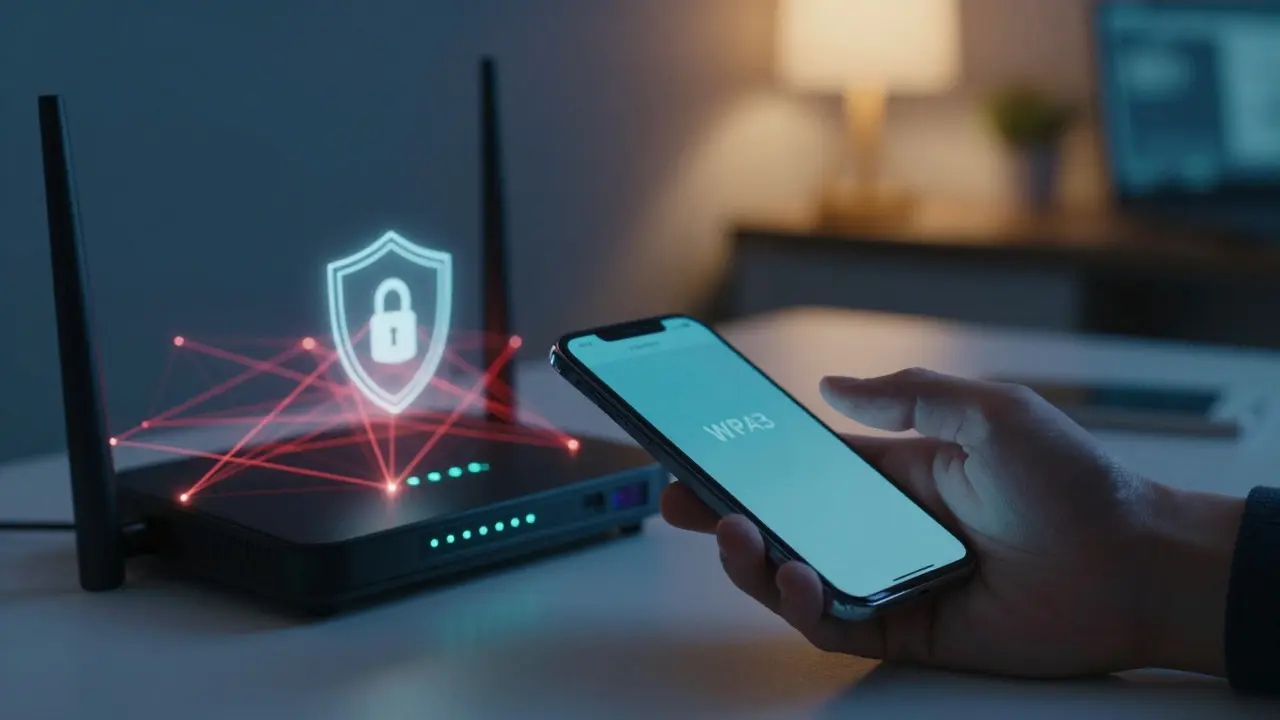
Encryption ensures that data sent between your devices and the router is scrambled so eavesdroppers can’t read it. Older standards like WEP are obsolete and easily cracked. WPA2 is acceptable, but WPA3 is the latest Wi-Fi security standard that provides stronger encryption and better protection against dictionary attacks. If your router supports WPA3, switch to it. If not, ensure you are using WPA2-AES. Avoid mixed modes that allow older, weaker protocols. Set a strong pre-shared key (your Wi-Fi password) that is at least 12 characters long, mixing uppercase, lowercase, numbers, and symbols. Change this password every year or if you suspect a breach.
Step 4: Protect Internet of Things (IoT) Devices
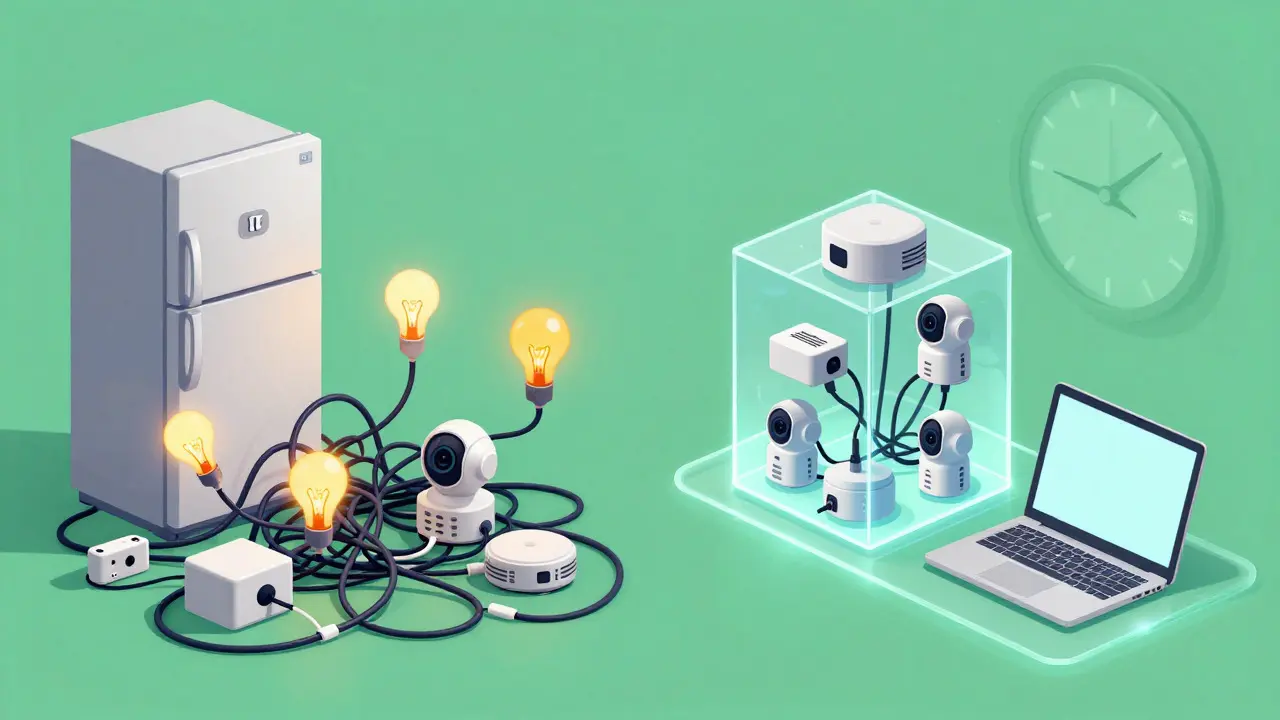
Smart devices are often the weakest link in home security. Many manufacturers prioritize convenience over security, leading to weak defaults. For each IoT device, ask three questions: Does it have a unique password? Is it on a separate network segment? Can it receive updates? If the answer to any is no, take action. Create a guest network or a dedicated IoT VLAN on your router. This isolates smart devices from your main computers. If a smart fridge gets hacked, it shouldn’t have direct access to your work laptop where your tax documents live. Enable automatic updates for all devices that support them. For devices that don’t, note their release date; if they are older than five years, consider replacing them.
Step 5: Monitor Traffic and Bandwidth
Even with strong passwords, anomalies happen. Install a network monitoring app on your smartphone or computer. Tools like Fing or GlassWire can show you real-time traffic usage. Look for devices consuming high bandwidth when you aren’t using them. This could indicate background syncing, malware activity, or unauthorized streaming. Set up alerts for new device connections. If a new device joins your network at 3 AM, you want to know about it. Regularly review your DNS settings. Using a public DNS service like Cloudflare (1.1.1.1) or Google (8.8.8.8) can add a layer of ad-blocking and threat detection, though it sends your browsing data to those providers, so weigh the privacy trade-off.
Comparison: Standard vs. Secured Home Network
| Feature | Standard Setup | Secured Setup |
|---|---|---|
| Router Admin Password | Default (e.g., admin/admin) | Unique, 16+ character complex string |
| Wi-Fi Encryption | WPA2-Personal | WPA3-Personal |
| IoT Device Isolation | Same network as PCs | Dedicated Guest/VLAN network |
| Firmware Updates | Manual, rarely checked | Automatic or monthly manual check |
| Device Inventory | Unknown/Untracked | Documented list with MAC addresses |
Maintaining Security Over Time
Security is not a one-time task; it is a habit. Schedule a quick audit every six months. During this time, check for firmware updates, review connected devices, and test your Wi-Fi password strength. Keep a log of changes. If you change your ISP or upgrade your router, document the new settings. Teach household members basic hygiene: don’t click suspicious links, keep operating systems updated, and use two-factor authentication for cloud services linked to your home network. By treating your home network like a physical asset you maintain, you reduce the risk significantly. The goal is not perfection, but awareness and proactive management.
How often should I change my Wi-Fi password?
You should change your Wi-Fi password every 12 months, or immediately if you suspect a breach. More frequent changes can be inconvenient for smart devices that need re-pairing, so annual rotation strikes a good balance between security and usability.
Is WPA3 worth upgrading to if I have WPA2?
Yes, if your router and devices support it. WPA3 offers stronger protection against offline dictionary attacks and improves security for open networks. However, if your older devices don’t support WPA3, staying on WPA2-AES with a strong password is still very secure.
What should I do if I find an unknown device on my network?
First, verify if it belongs to a neighbor or a forgotten device of yours. If it remains unidentified, change your Wi-Fi password to force it off. Then, monitor your network for a few days to see if it reconnects. If it does, you may need to check for rogue access points or physical tampering with your router.
Do smart TVs need special security attention?
Yes. Smart TVs often have built-in web browsers and app stores that can be exploited. Disable unused features like Bluetooth or USB media players if possible. Ensure the TV is on the isolated IoT network and keep its software updated to patch known vulnerabilities.
Can a hacker control my smart home devices remotely?
It is possible if the device has weak security or a known vulnerability. Hackers can sometimes turn lights on/off, unlock doors, or view camera feeds. Isolating these devices on a separate network and keeping firmware updated drastically reduces this risk, making remote control difficult without first breaching the local network.